Issues Portal Guide
Portal URL
https://issues.test.emali2.damplabs.com
What This Guide Covers
The Issues Portal is the client-facing support workspace for intake, triage, comments, attachments, status movement, and notifications. Access is controlled through IAM roles, and users without issue-support access can request access from the entry screen.
Current Live Evidence
- Browser evidence captured on 2026-07-01 from the test environment using the documented service-provider test account.
- The visible role for this run was
Client Issue Support. - The board, issue-detail panel, and notifications page rendered successfully.
- Dashboard and internal-discussion views were not visible for this role, so public screenshots for those views are intentionally omitted.
Representative Screens
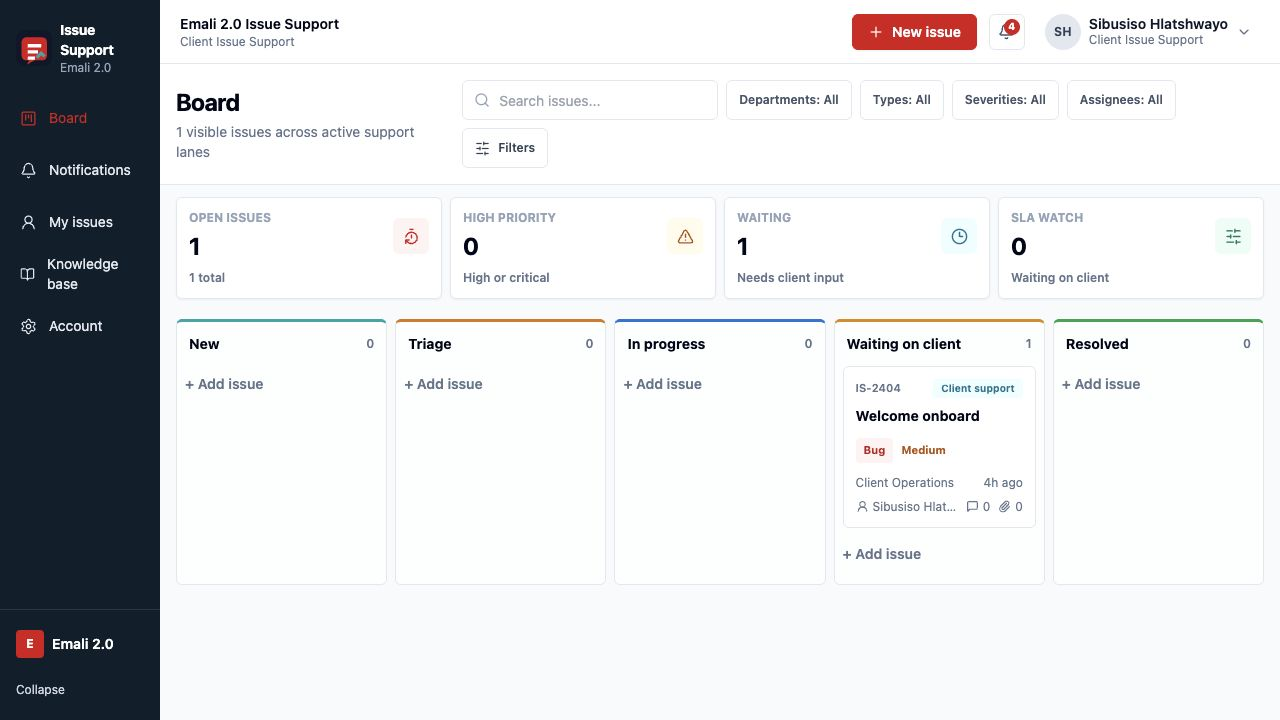
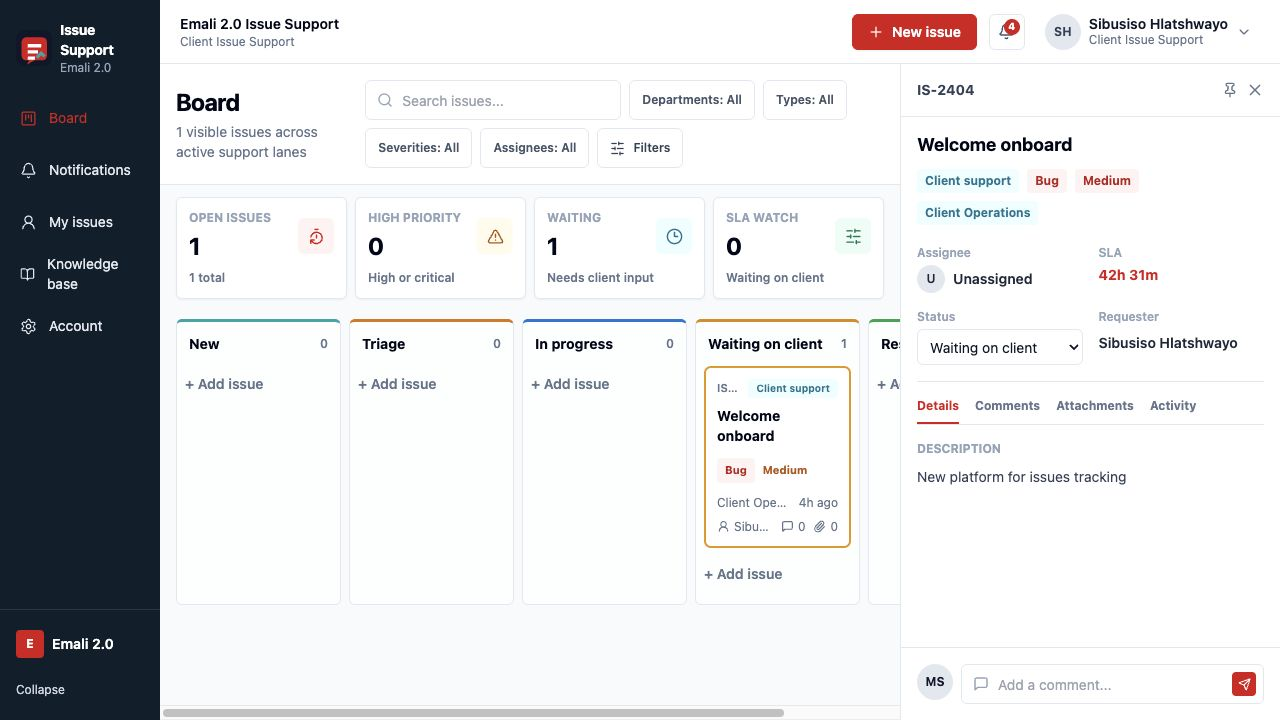

Core Workflow
- Open the Issues Portal and select
Sign inif issue-support access is already assigned. - Use the board to review counts by lane: New, Triage, In progress, Waiting on client, and Resolved.
- Open an issue card to review status, SLA, requester, description, comments, attachments, and activity.
- Use notifications to track issue changes that need attention.
- Use
New issueor+ Add issueto create a support item when the role permits intake.
Operational Notes
Request accessis for accounts that exist in IAM but still need issue-support roles.- Client users normally see their own issue workspace. Support operators can see broader queues when their role allows it.
- The notification header is safe to share publicly; individual notification rows can include names and issue history, so screenshots should be reviewed before publication.