Customer Mobile App Screen-by-Screen Guide
This page is the exhaustive route and surface inventory for the customer mobile app. It covers every top-level page, modal sheet, and major dialog currently exposed in the customer build.
Route Inventory
The customer mobile app currently exposes these screen groups:
- Signed-out and onboarding screens
- Authenticated shell screens
- Payment sub-pages
- Wallet sheets
- Activity detail sheets
- Services modules
- Profile editors and support dialogs
Signed-Out And Onboarding Screens
| Screen | What The Customer Sees | Current Actions |
|---|---|---|
Secure access |
remembered-device unlock card with keypad and biometric option | enter Service PIN, use biometrics, use another account, forgot PIN |
Remembered account re-auth |
password form for a remembered customer | sign in with password, switch account |
Welcome back |
first-time or switched-account login form | sign in, open registration |
Registration chooser |
customer vs organization selection | choose customer, choose organization, go back |
Customer registration |
personal onboarding form plus document uploader | fill profile fields, add KYC docs, remove drafts, submit |
Organization registration wizard |
4-step onboarding wizard | enter organization details, admin contact, documents, review, submit |
Registration submitted |
confirmation page | review reference, return to login |
Language chooser |
dialog on signed-out screens | switch English or siSwati |
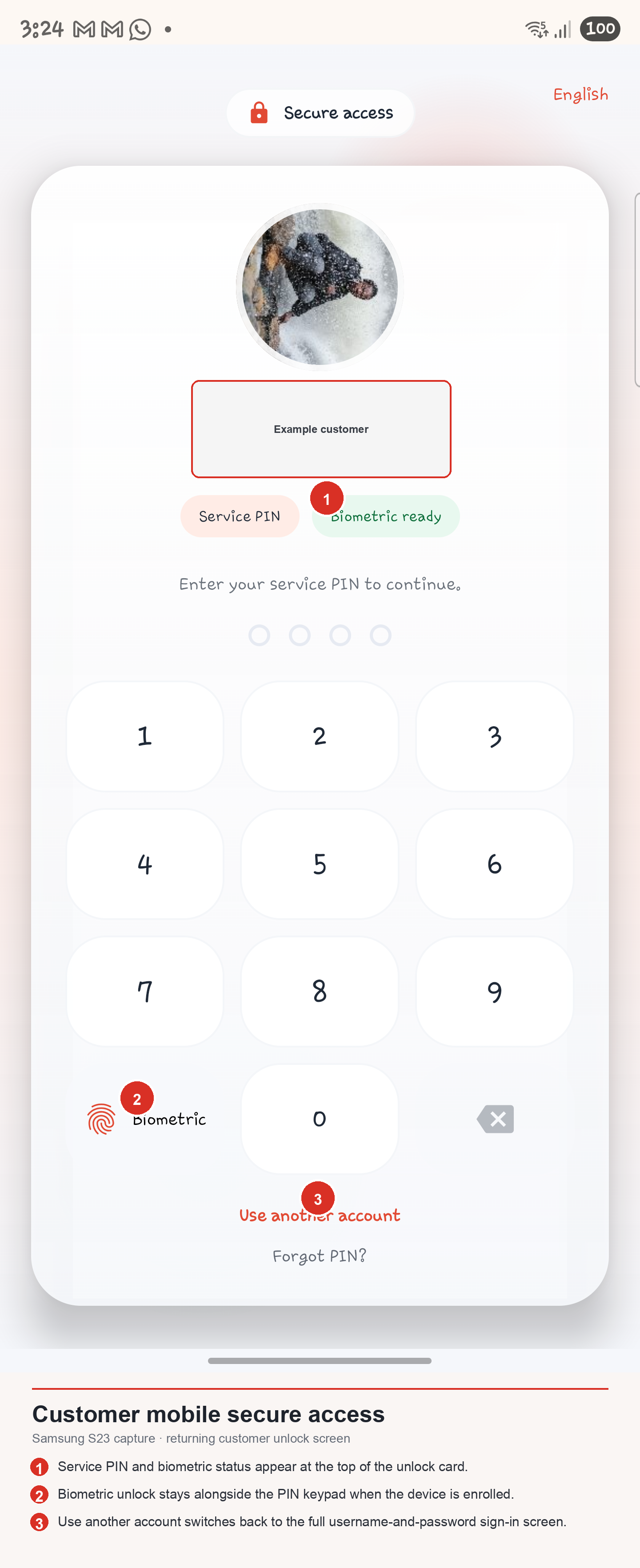
Secure access
This is the fast path for a remembered customer on the same device.
- header with remembered identity
- Service PIN keypad
- biometric unlock button when enabled
- error state when PIN or biometric auth fails
Use another accountForgot PIN?
Welcome back
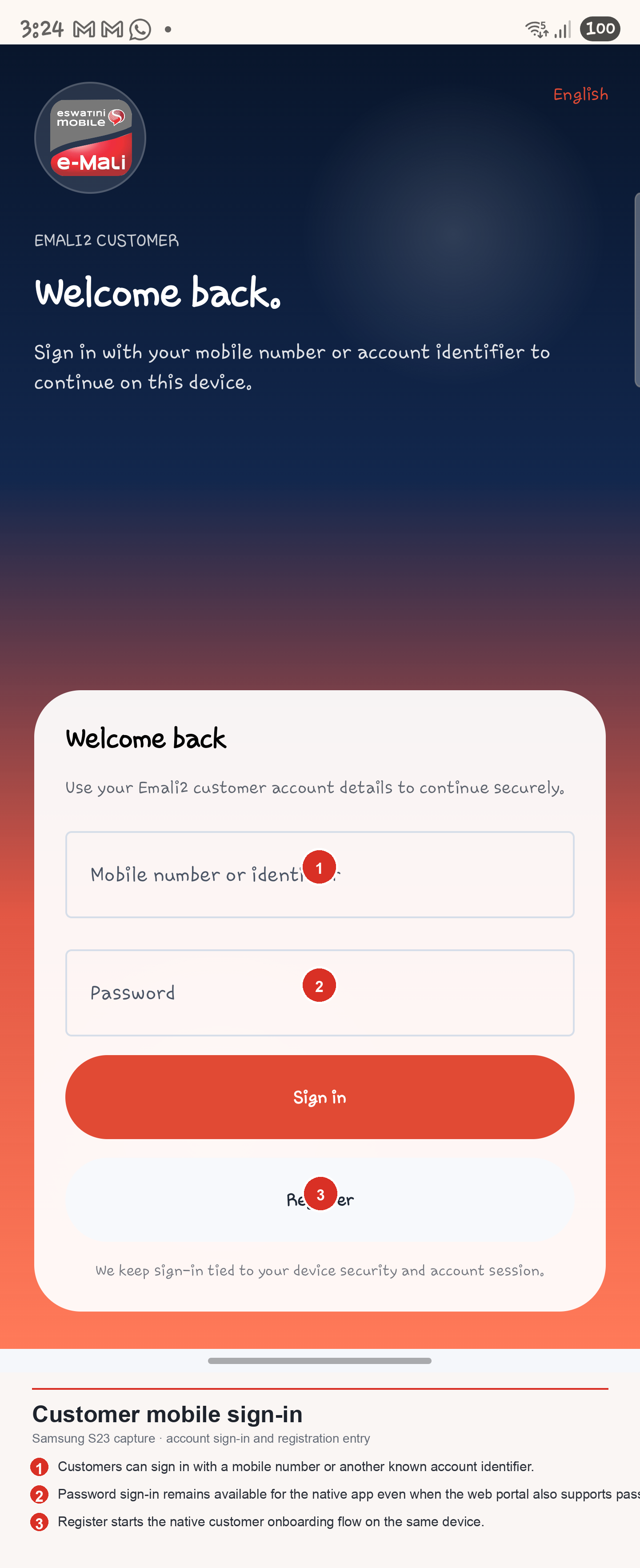
This is the fresh-device or switched-account sign-in screen.
- account identifier input
- password input
Sign inRegister- error banner area
Customer registration
The customer registration form currently includes:
- first name
- last name
- full name
- phone number
- national ID
- date of birth
- address
- document type, number, expiry, and file attachment
- draft-document list
- submit action
Organization registration wizard
The organization flow is still reachable from the customer app and runs as a multi-step wizard:
- Organization details
- organization name
- preferred short code
- registration number
- tax number
- requested services
- contact details and address
- Admin details
- admin full name
- admin email
- admin phone
- optional username
- Documents
- document type
- document number
- expiry date
- file attachments
- Review and submit
Authenticated Shell
| Surface | What The Customer Sees | Current Actions |
|---|---|---|
Home |
dashboard, balance card, quick actions, notifications | refresh, open QR Pay, open notifications, open Services, use More |
Notifications sheet |
filtered notifications list | mark read, mark all read, clear all, filter by category |
More links dialog |
tab shortcuts | jump to Home, Pay, Wallets, Activity, Services, Profile |
Pay |
payment hub | choose payment route |
Wallets |
wallet workspace | manage wallet actions and sheets |
Activity |
history and analytics workspace | filter history, open receipt, request reversal |
Services |
first-party service launcher | open statements, savings, group wallets, contributions, rewards, budgets, mini-apps |
Profile |
account, preferences, security, support | open editors, devices, support links, sign out |
Home
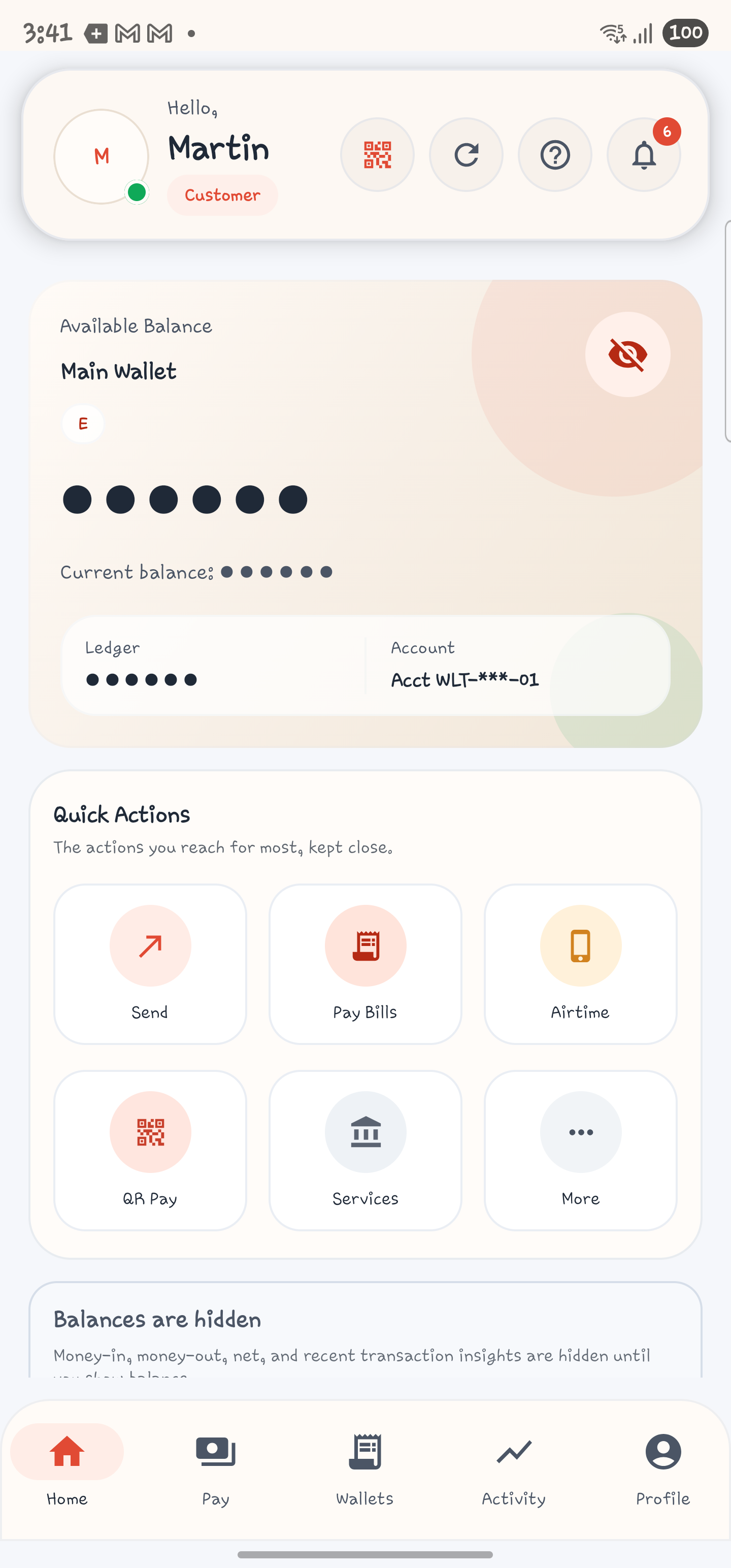
Home contains:
- greeting and avatar
- QR Pay action
- refresh action
- guide/help action
- notifications action
- balance hero card
- wallet context
- quick actions:
- Send
- Pay Bills
- Airtime
- QR Pay
- Services
- More
- balance-hidden state card
- KPI and insight surfaces when balances are visible
Notifications Sheet
The in-app notification sheet currently supports:
- unread badge count
- categories:
- all
- transactions
- security
- service
- system
- tap to mark an unread item read
Mark all readClear all
More Links Dialog
This is a quick-jump overlay from Home. It opens shortcuts to:
- Home
- Pay
- Wallets
- Activity
- Services
- Profile
Pay Screens
| Screen | What The Customer Sees | Current Actions |
|---|---|---|
Pay hub |
payment menu cards | open a payment route |
Send money |
single-recipient money transfer page | pick recent recipient, pick contact, resolve recipient, set amount and reference |
Send to many |
multi-recipient transfer page | add or remove recipients, set per-recipient amount, enter transaction PIN |
Airtime / Data / No Frills |
purchase page | choose self or other, choose provider, choose bundle or amount |
Pay bill |
biller payment page | search biller, choose biller, set account number, amount, reference |
Pay merchant |
merchant payment page | choose recent merchant or enter merchant code, amount, reference |
Agent withdraw |
cash-out page | choose recent or nearby agent, search directory, set amount and notes |
Mobile to bank |
bank transfer page | search bank, choose bank, set account number, amount, reference |
Scan QR |
QR journey page | scan payload, pay resolved payee, create payment request |
| confirmation dialogs | review card before commit | enter transaction PIN or confirm quote |
Pay Hub
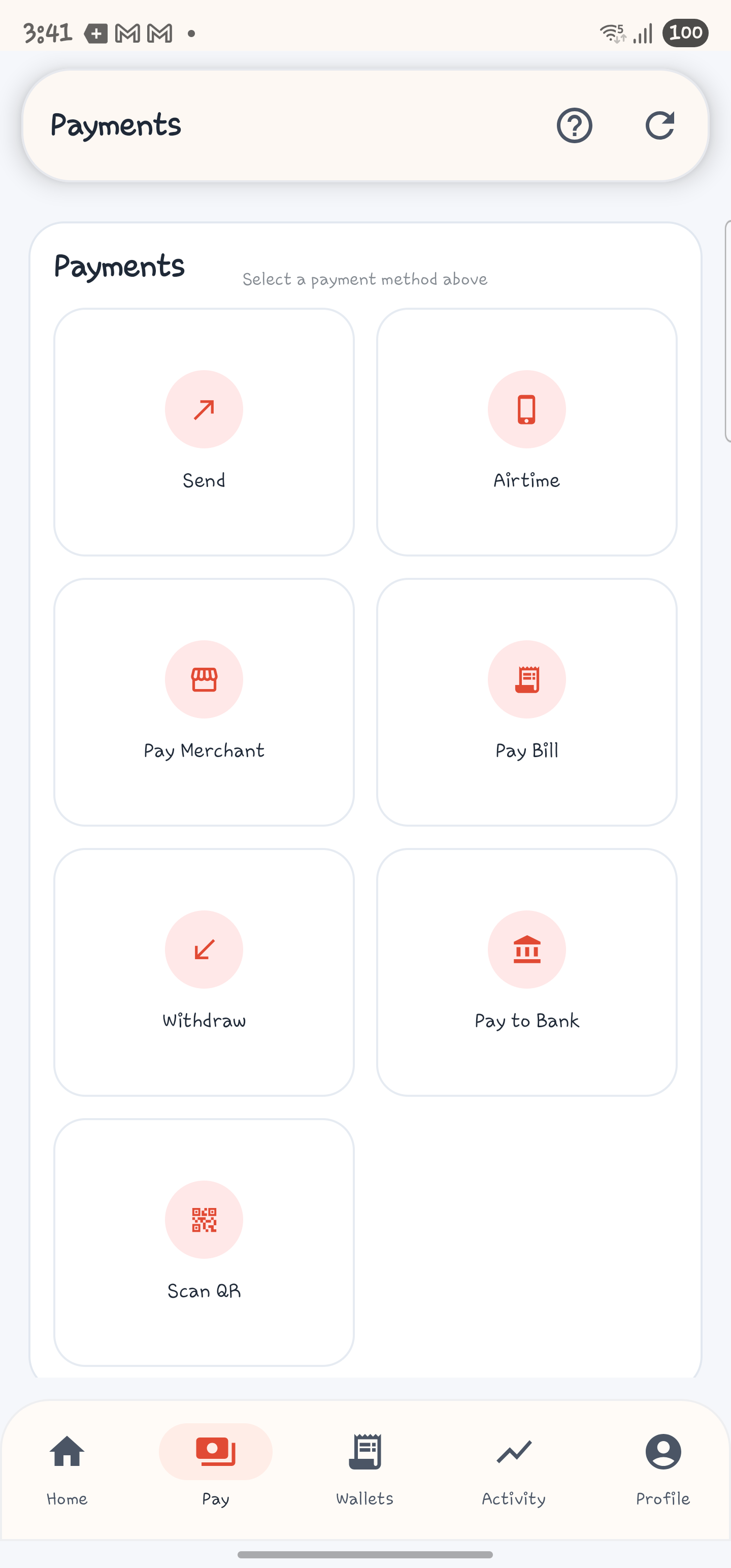
The main payment hub shows:
- Send
- Airtime
- Pay Merchant
- Pay Bill
- Withdraw
- Pay to Bank
- Scan QR
Send money
This screen currently includes:
- recent recipients
- contacts picker
- recipient lookup and validation
- quick amount chips
- reference
Continue- bulk-send suggestion card
Send to many
This bulk send page includes:
- at least two recipients
- add recipient
- remove recipient
- contact picker
- per-recipient amount
- total amount
- reference
- transaction PIN
- submit
Airtime / Data / No Frills
This purchase page supports:
- purchase for self or another person
- network or provider selection
- data bundle selection
- no-frills preset amounts
- amount
- reference
Agent withdraw
This page includes:
- agent identifier input
- recent agents
- nearby agents
- agent directory search
- amount
- notes
- review quote
Scan QR
The QR journey includes two branches:
- pay from a scanned QR payload
- create a payment request with amount, note, and expiry
Wallet Screens And Sheets
| Screen Or Sheet | What The Customer Sees | Current Actions |
|---|---|---|
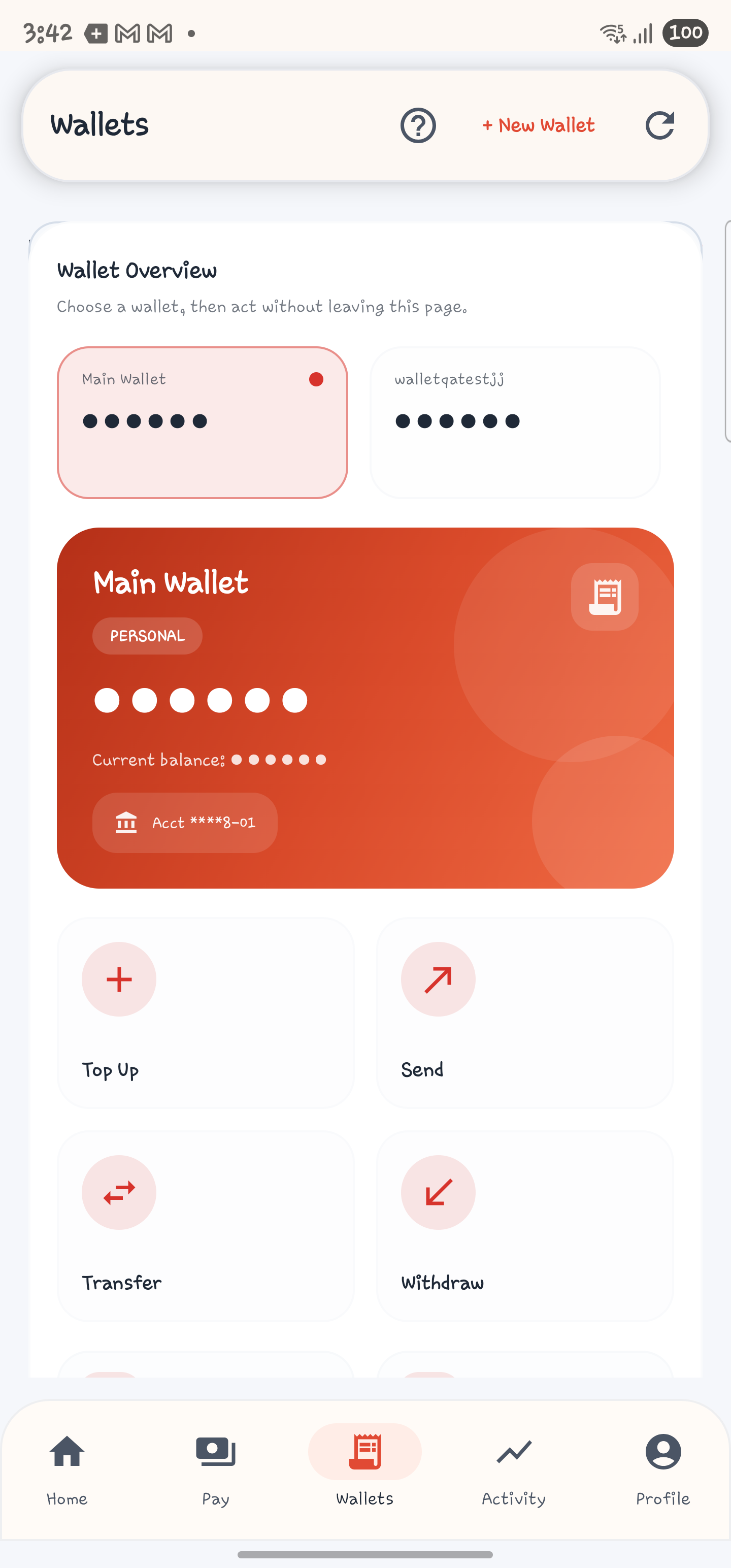
Wallet overview |
wallet selector, hero card, quick actions, summary cards | switch wallet, top up, send, transfer, withdraw, create wallet |
Create wallet sheet |
wallet form | set name, account type, currency, description |
Top up sheet |
top-up form | set amount, reference, description |
Rename wallet sheet |
rename form | change wallet display name |
Wallet transfer sheet |
inter-wallet transfer form | choose source and destination, amount, reference, description |
Wallet overview also links into:
- recent transactions
- savings goals
- contributions
- service-linked shortcuts
Activity Screens And Detail Sheets
| Screen Or Sheet | What The Customer Sees | Current Actions |
|---|---|---|
Activity |
metrics, search, filters, history | inspect trends, search, filter, open receipt |
Transaction receipt sheet |
transaction overview | view parties, breakdown, timeline, copy reference, share receipt |
Request reversal dialog |
reversal reason and narrative | choose reason, add note, submit reversal request |
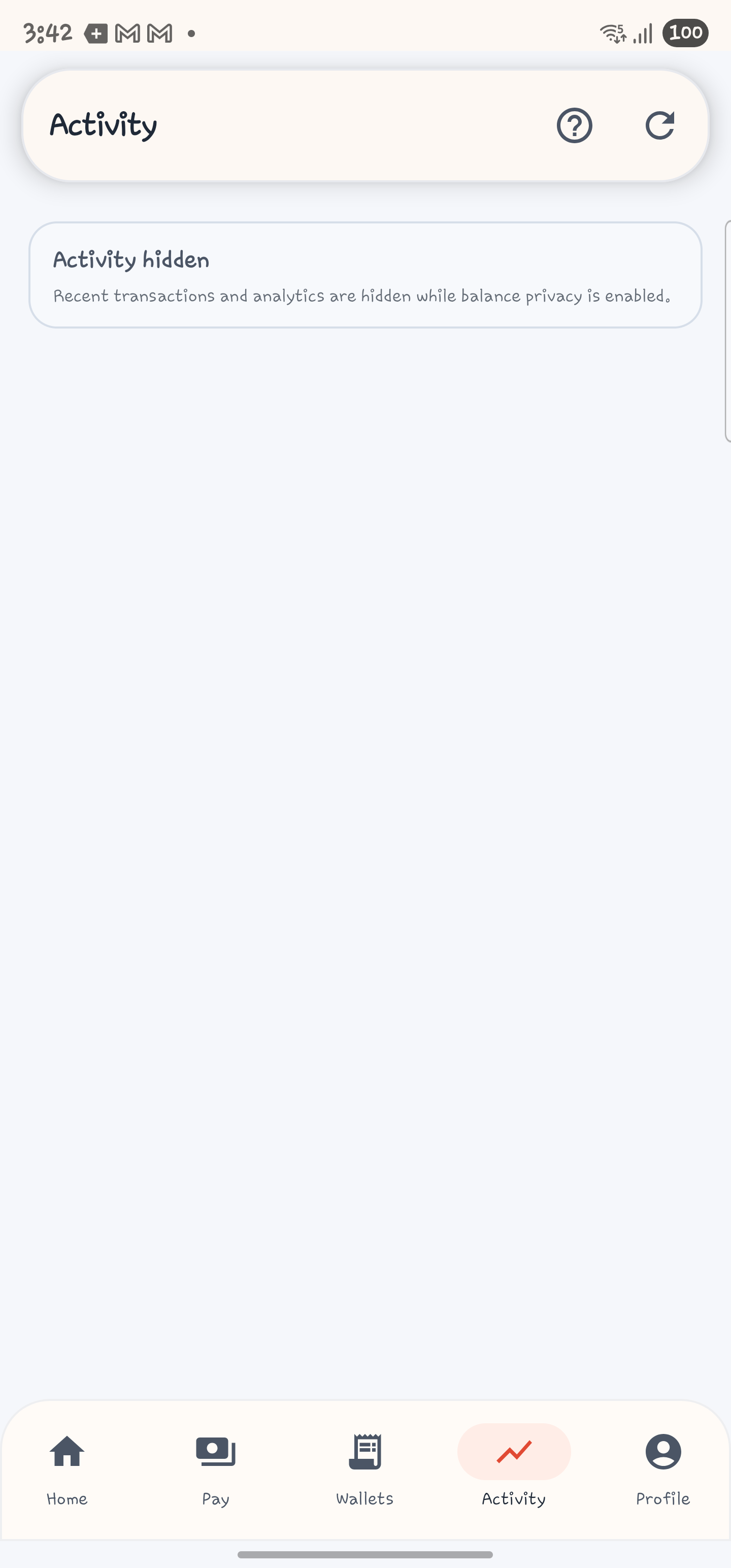
When balances remain hidden, Activity shows a privacy message instead of analytics and detailed history.
Services Hub And Modules
| Screen | What The Customer Sees | Current Actions |
|---|---|---|
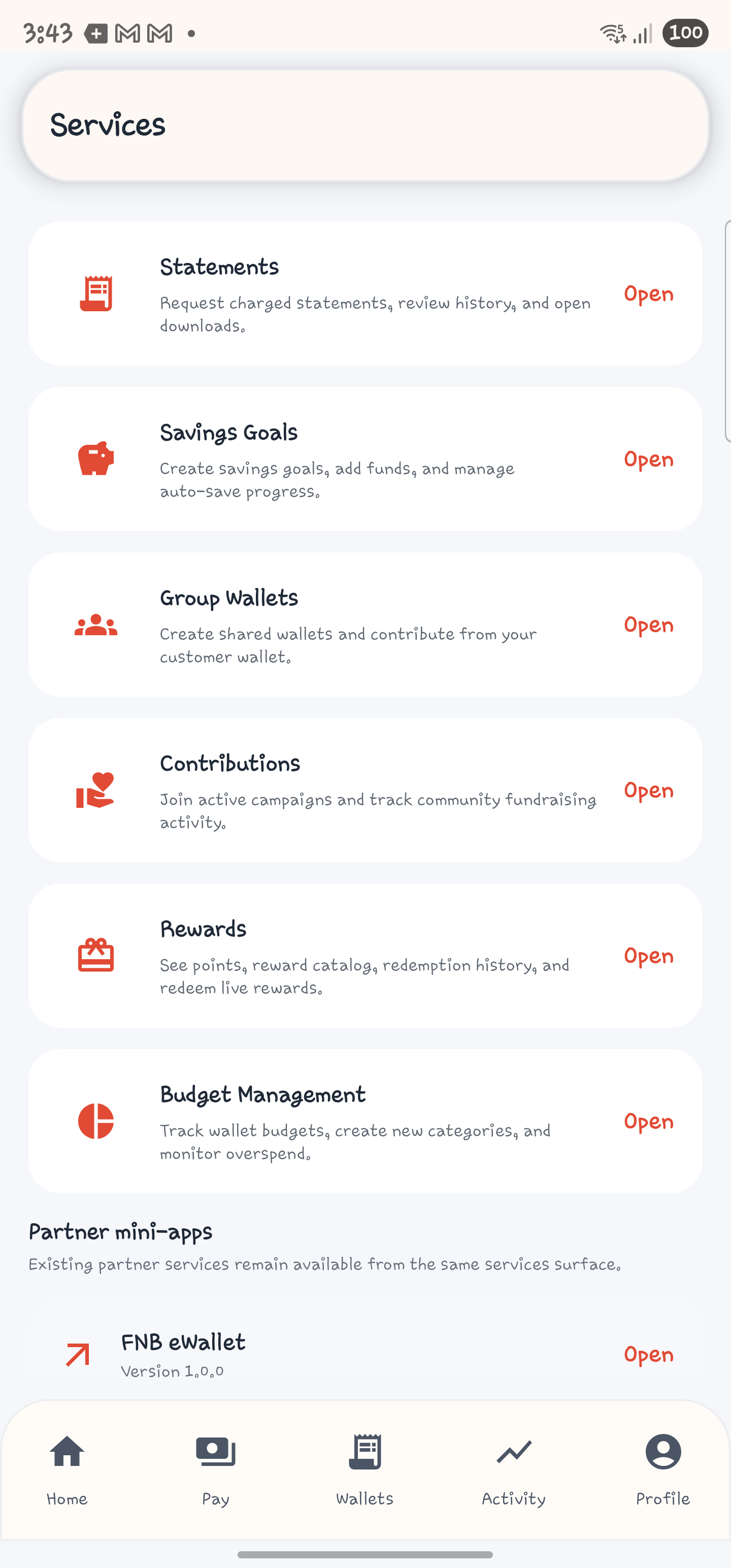
Services hub |
service cards plus partner mini-apps | open first-party modules, open partner mini-apps |
Statements |
request and history workspace | choose wallet, choose date range, request statement, open history |
Savings Goals |
goal workspace | create goal, add funds, pause or resume auto-save, inspect history |
Group Wallets |
shared-wallet workspace | accept or decline invitation, create wallet, contribute, open details |
Contributions |
campaign workspace | contribute with Service PIN, inspect history |
Rewards |
rewards workspace | inspect points, browse catalog, redeem, inspect history |
Budget Management |
budget workspace | create, edit, activate, deactivate, delete budgets |
Services Hub
The customer build currently shows these first-party entries:
- Statements
- Savings Goals
- Group Wallets
- Contributions
- Rewards
- Budget Management
Below the first-party entries, the app also shows partner mini-apps when configured.
Statements
This module includes:
- wallet selector
- account overview card
- statement fee quote
- date presets:
- last 30 days
- last 90 days
- year to date
- custom
- from and to dates
- transaction limit
- request statement
- recent requests
- open download action
Savings Goals
This module includes:
- create goal form:
- goal name
- description
- target amount
- deadline
- category
- priority
- active goals list
- add funds dialog
- history dialog
- pause or resume auto-save
- submit lock while deposits are in flight
Group Wallets
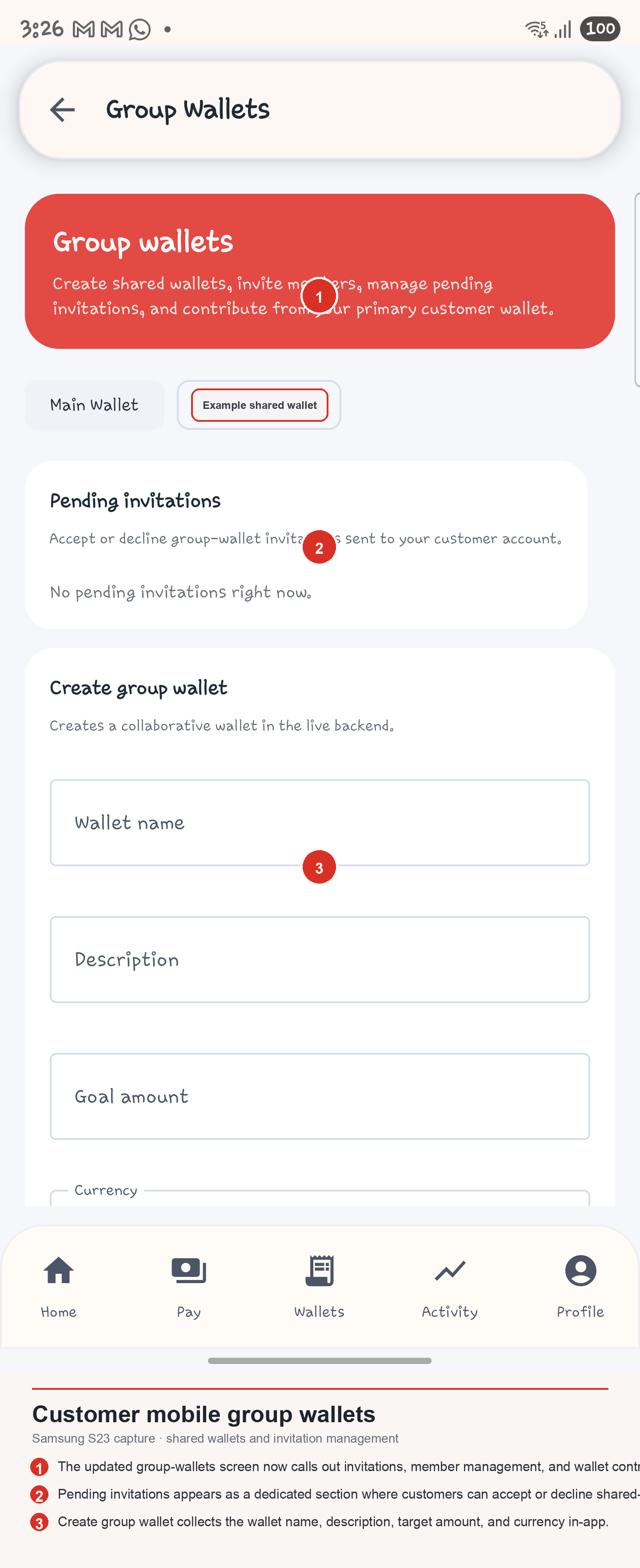
This module includes:
- pending invitations
- accept
- decline
- create group wallet form
- wallet name
- description
- goal amount
- currency
- my group wallets
- contribution dialog
- amount
- note
- Service PIN
- wallet details dialog
- balance
- goal
- members
- role
- invitation activity
- recent contributions
- admin-only invite tools
- invite member
- resend pending invite
- cancel pending invite
Contributions
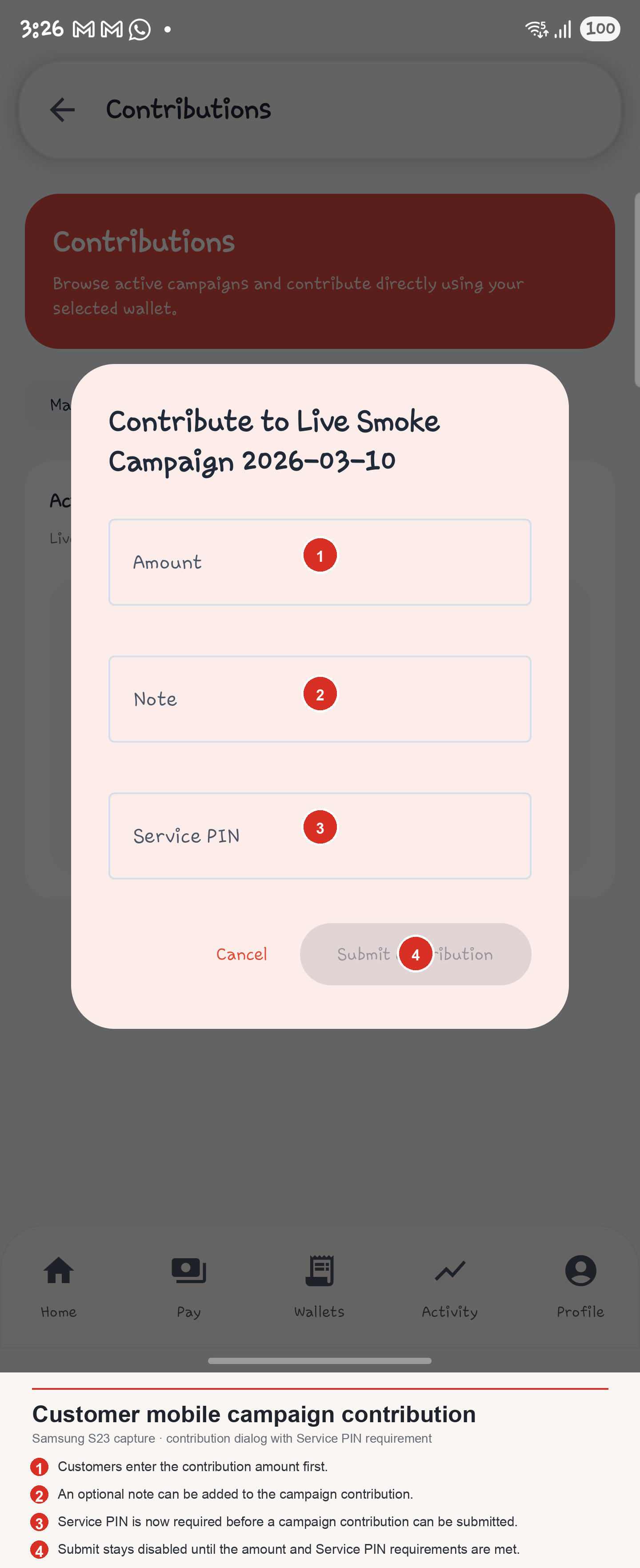
This module includes:
- active campaigns
- campaign progress
- contribution dialog
- amount
- optional note
- Service PIN
- campaign history dialog
Rewards
This module includes:
- points account summary
- reward catalog
- reward history
- redeem dialog with processing lock
Budget Management
This module includes:
- budget summary
- create budget
- category
- limit amount
- period
- icon
- active budgets
- edit budget
- delete budget
- active or inactive toggle
Profile Screens And Dialogs
| Screen Or Dialog | What The Customer Sees | Current Actions |
|---|---|---|
Profile overview |
account summary, section launcher cards | open account, preferences, security, support, sign out |
Personal Information editor |
editable profile fields and image uploader | edit and save profile |
Login & Security editor |
native security controls and server security status | manage Service PIN, biometrics, TOTP, transaction PIN, web-login mode |
KYC Documents editor |
KYC status and uploads | choose document type, upload, submit for review, open docs |
Notification preferences editor |
communication toggles | save notification settings |
Language and region editor |
locale and format controls | choose language, currency, date format |
Appearance editor |
privacy and theme controls | show or hide balances, follow device theme |
Connected devices |
device list | refresh, remove device |
Help center dialog |
support actions | open help, call support, email support |
Terms and privacy dialog |
legal actions | open legal FAQ, email legal or privacy support |
Mobile web login approval dialog |
browser-login review card | approve, deny, cancel |
Profile overview
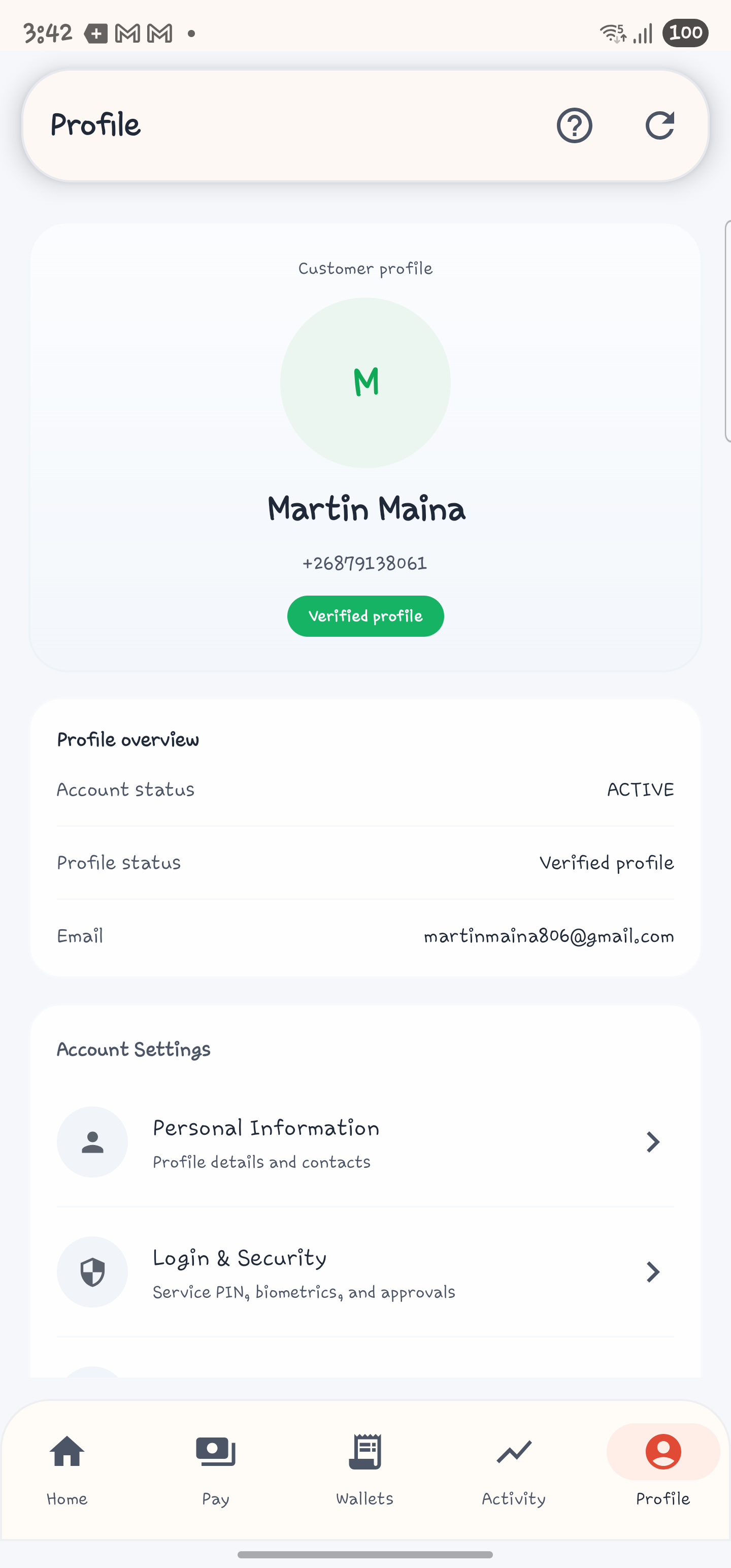
The main profile landing screen currently shows:
- customer name
- primary identifier
- verification badge
- account status
- profile status
- account settings section
- preferences section
- support section
- sign out
Login & Security
This editor currently contains both local-device security controls and server-backed security status:
- Service PIN set, update, or remove
- biometric unlock toggle
- biometric enrollment action when required
- refresh status
- TOTP status
- transaction PIN status
- customer portal web-login mode status
- require TOTP on next login
- disable TOTP
- enable or disable customer-portal mobile-only web login
- scan customer-portal web login QR
- enroll 6-digit transaction PIN
KYC Documents
This editor shows:
- current KYC status
- last updated
- approved by
- rejection reason if present
- document type chips
- document number
- file picker
- upload and submit
- submitted document list
- open uploaded document
Connected devices
This section supports:
- load all connected devices
- identify current or online devices
- inspect last active time and masked IP
- remove a device session
Help center And Terms and privacy
These support dialogs can open:
- customer help center
- phone support
- support email
- legal FAQ
- legal or privacy email contact
Use Customer Mobile App Task Workflows when you need step-by-step instructions instead of route inventory.